Active Directory Password Expiration Monitor: HTML Email Reports with PowerShell (2026 Guide)
Users will call the helpdesk about a locked-out account even if they received three expiration warning emails, even if there is a self-service password reset portal on the intranet homepage, and even if their manager reminded them in the team meeting. This is not going to change. What you can change is how fast you resolve the call — and whether you have the information in front of you before you pick up the phone.
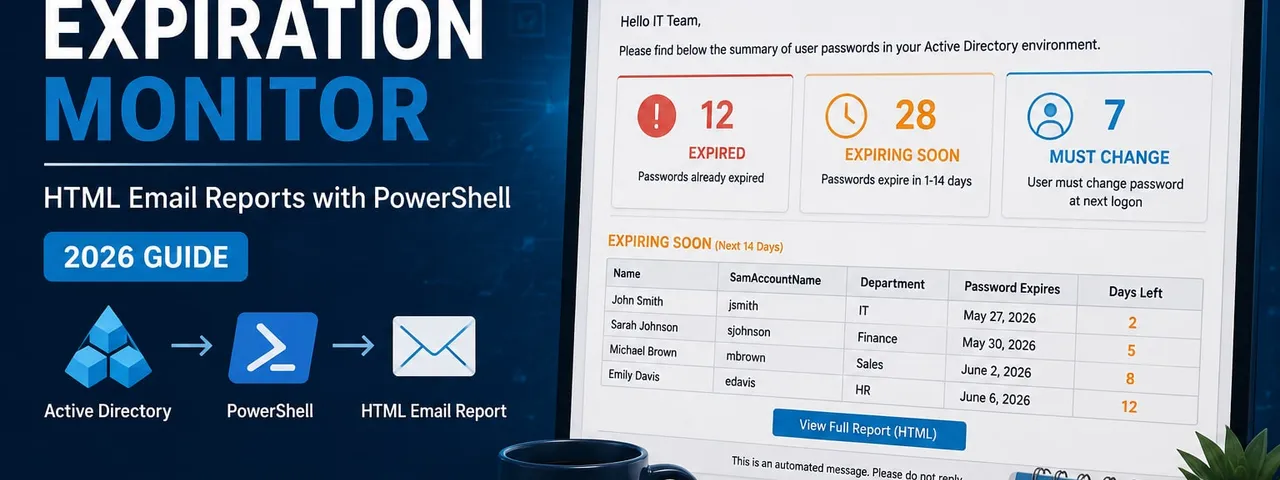
This post walks through the PowerShell script I run in production to monitor Active Directory password expirations. Every morning it scans our user OUs, builds a formatted HTML email with three sections (expiring soon, already expired, must change at next login), and lands in the IT team’s inbox before the first calls come in. When someone rings at 8:15 saying they cannot log in, the answer is usually already sitting in yesterday’s report.
If you just want the script, skip ahead.
What the report covers
Three categories, each in its own table:
Expiring within N days — configurable threshold, default 7 days. Sorted by expiration date ascending so the most urgent accounts are at the top.
Already expired — accounts whose passwords passed the expiration date but the user has not yet been locked out or has not attempted to log in. These are the accounts that generate calls the moment someone tries to connect remotely on a Monday morning.
Must change at next login — accounts where PwdLastSet is 0, meaning an admin set the flag. Often forgotten after bulk user creation, account resets, or onboarding scripts that set a temporary password. These never show up in standard expiration reports, but they generate the same helpdesk calls.
The report only runs if there is something to report — if all passwords are healthy, no email is sent. Your inbox does not fill up with empty “all clear” messages every morning.
Prerequisites
The ActiveDirectory PowerShell module. This comes with RSAT on Windows 10/11 or is installed automatically on domain controllers. Verify with:
Get-Module -ListAvailable -Name ActiveDirectoryIf it is missing on a non-DC machine, install RSAT:
# Windows 10/11
Add-WindowsCapability -Online -Name Rsat.ActiveDirectory.DS-LDS.Tools~~~~0.0.1.0
A service account to run the script. You do not need admin rights. The script only reads user attributes — it never writes anything back to AD. The minimum permission required is standard authenticated user access, which any domain account has by default.
The one attribute worth knowing about is msDS-UserPasswordExpiryTimeComputed. This is a constructed attribute — AD calculates it on the fly from PwdLastSet plus the applicable password policy’s maxPwdAge. In a default AD configuration, authenticated users can read it. However, some organizations harden their AD by restricting read access on password-related attributes. If your environment has done this, grant the service account explicit Read permission on this attribute across the target OUs. Nothing else is needed — no password reset rights, no write access, nothing elevated.
An internal SMTP relay the script can send through. If your environment uses Microsoft 365 for email and has no on-premises relay, see the note at the end on alternatives to Send-MailMessage.
Fine-grained password policies and why this script handles them correctly
Most PowerShell password expiration scripts you find online calculate expiration by reading the domain’s default maxPwdAge and adding it to PwdLastSet. This works fine until your environment has fine-grained password policies (PSOs) applied to specific groups or OUs — then the calculation is wrong for any user covered by a PSO, and you get false results.
This script avoids that problem entirely by reading msDS-UserPasswordExpiryTimeComputed instead. AD calculates this attribute per-user, taking into account whichever password policy actually applies to that user — default domain policy or a PSO. You get the correct expiration date regardless of how many different password policies exist in your environment.
The only limitation is that this script scans specific OUs rather than the whole domain. This is intentional — in environments with fine-grained policies, targeting specific user OUs means you are scanning the accounts where the policies are actually applied, not picking up computer accounts, service accounts in separate OUs, or other objects you do not want in the report. Configure the $OUs array to match your user OU structure and the results will be accurate.
The script
Save this as Check-PasswordExpiration.ps1. Configure the $OUs array and the $EmailConfig block at the top, then run it or drop it into a scheduled task.
#Requires -Modules ActiveDirectory

#region ── Configuration ──────────────────────────────────────────────────────

# OUs to scan (array of distinguished names)
[string[]]$OUs = @(
    "OU=Users,OU=HQ,DC=contoso,DC=com"
    # "OU=Users,OU=Branch,DC=contoso,DC=com"
    # Add as many OUs as needed
)

# How many days ahead to warn about expiring passwords
[int]$DaysToCheck = 7

# SMTP settings
$EmailConfig = @{
    From       = "it-monitoring@contoso.com"
    To         = "it-team@contoso.com"
    Subject    = "Password Expiration Report - $(Get-Date -Format 'yyyy-MM-dd')"
    SmtpServer = "smtp.contoso.com"
    Port       = 25
    UseSsl     = $false
    # Credential = (Get-Credential)  # Uncomment if SMTP auth is required
}

# Log file — written next to the script
$LogFile = Join-Path $PSScriptRoot "PasswordExpirationCheck_$(Get-Date -Format 'yyyyMMdd_HHmmss').log"

#endregion

#region ── Helper Functions ───────────────────────────────────────────────────

function Write-Log {
    param(
        [string]$Message,
        [ValidateSet("INFO", "WARN", "ERROR")]
        [string]$Level = "INFO"
    )
    $timestamp = Get-Date -Format "yyyy-MM-dd HH:mm:ss"
    $entry = "[$timestamp] [$Level] $Message"
    switch ($Level) {
        "WARN"  { Write-Warning $Message }
        "ERROR" { Write-Error $Message }
        default { Write-Output $entry }
    }
    $entry | Out-File -FilePath $LogFile -Append -Encoding UTF8
}

function Get-PasswordExpirationDate {
    param([Parameter(Mandatory)][Microsoft.ActiveDirectory.Management.ADUser]$User)

    $rawValue = $User."msDS-UserPasswordExpiryTimeComputed"

    # 0 or Int64.MaxValue means "never expires" or "not set"
    if ($null -eq $rawValue -or $rawValue -eq 0 -or $rawValue -eq [Int64]::MaxValue) {
        return $null
    }

    try {
        return [datetime]::FromFileTime($rawValue)
    }
    catch {
        Write-Log "Could not convert expiry time for $($User.SamAccountName): $_" -Level WARN
        return $null
    }
}

function Format-Date {
    param([datetime]$Date)
    # Adjust the format string and culture to match your locale.
    # Examples:
    #   US:  $Date.ToString("MM/dd/yyyy HH:mm")
    #   UK:  $Date.ToString("dd/MM/yyyy HH:mm")
    #   ISO: $Date.ToString("yyyy-MM-dd HH:mm")
    return $Date.ToString("yyyy. MM. dd. HH:mm:ss", [System.Globalization.CultureInfo]::GetCultureInfo("hu-HU"))
}

function ConvertTo-HtmlTable {
    param(
        [Parameter(Mandatory)][array]$Data,
        [Parameter(Mandatory)][string[]]$Columns,
        [Parameter(Mandatory)][hashtable]$ColumnMap
    )

    $html = "<table><tr>"
    foreach ($col in $Columns) {
        $html += "<th>$([System.Net.WebUtility]::HtmlEncode($col))</th>"
    }
    $html += "</tr>"

    foreach ($item in $Data) {
        $html += "<tr>"
        foreach ($col in $Columns) {
            $value = & $ColumnMap[$col] $item
            $html += "<td>$([System.Net.WebUtility]::HtmlEncode($value))</td>"
        }
        $html += "</tr>"
    }

    $html += "</table>"
    return $html
}

#endregion

#region ── Main Logic ─────────────────────────────────────────────────────────

Write-Log "Script started. Scanning $($OUs.Count) OU(s), threshold: $DaysToCheck day(s)."

if ($OUs.Count -eq 0) {
    Write-Log "No OUs configured. Please edit the `$OUs array." -Level ERROR
    exit 1
}

$Today = (Get-Date).Date

$ExpiringUsers    = [System.Collections.Generic.List[object]]::new()
$ExpiredUsers     = [System.Collections.Generic.List[object]]::new()
$NeedsChangeUsers = [System.Collections.Generic.List[object]]::new()

$ADProperties = @(
    "DisplayName"
    "msDS-UserPasswordExpiryTimeComputed"
    "PwdLastSet"
    "PasswordNeverExpires"
)

foreach ($OU in $OUs) {
    Write-Log "Processing OU: $OU"
    try {
        $Users = Get-ADUser -Filter "Enabled -eq `$true" `
            -SearchBase $OU `
            -Properties $ADProperties `
            -ErrorAction Stop
    }
    catch {
        Write-Log "Failed to query OU '$OU': $_" -Level ERROR
        continue
    }

    Write-Log "Found $($Users.Count) enabled user(s)."

    foreach ($User in $Users) {

        # Skip accounts set to never expire
        if ($User.PasswordNeverExpires) { continue }

        # Detect "must change password at next logon"
        if ($User.PwdLastSet -eq 0) {
            $NeedsChangeUsers.Add($User)
            continue
        }

        $ExpirationDate = Get-PasswordExpirationDate -User $User
        if ($null -eq $ExpirationDate) { continue }

        $DaysUntilExpiration = ($ExpirationDate.Date - $Today).Days

        if ($DaysUntilExpiration -ge 0 -and $DaysUntilExpiration -lt $DaysToCheck) {
            $ExpiringUsers.Add($User)
        }
        elseif ($DaysUntilExpiration -lt 0) {
            $ExpiredUsers.Add($User)
        }
    }
}

$totalFound = $ExpiringUsers.Count + $ExpiredUsers.Count + $NeedsChangeUsers.Count
Write-Log "Results — Expiring: $($ExpiringUsers.Count), Expired: $($ExpiredUsers.Count), Must change: $($NeedsChangeUsers.Count)"

#endregion

#region ── Build & Send Email ─────────────────────────────────────────────────

if ($totalFound -eq 0) {
    Write-Log "No password issues found. No email sent."
    exit 0
}

$NameMap = @{
    "Name"     = { param($u) $u.DisplayName }
    "Username" = { param($u) $u.SamAccountName }
}

$NameAndDateMap = @{
    "Name"                     = { param($u) $u.DisplayName }
    "Username"                 = { param($u) $u.SamAccountName }
    "Password Expiration Date" = { param($u) Format-Date (Get-PasswordExpirationDate -User $u) }
    "Days Remaining"           = { param($u) [string](((Get-PasswordExpirationDate -User $u).Date - $Today).Days) }
}

$ExpiredDateMap = @{
    "Name"                     = { param($u) $u.DisplayName }
    "Username"                 = { param($u) $u.SamAccountName }
    "Password Expiration Date" = { param($u)
        $d = Get-PasswordExpirationDate -User $u
        if ($d) { Format-Date $d } else { "Unknown" }
    }
    "Days Overdue"             = { param($u)
        $d = Get-PasswordExpirationDate -User $u
        if ($d) { [string][Math]::Abs(($d.Date - $Today).Days) } else { "N/A" }
    }
}

$css = @"
<style>
    body  { font-family: Segoe UI, Arial, sans-serif; font-size: 14px; color: #333; }
    h2    { color: #2c3e50; border-bottom: 2px solid #3498db; padding-bottom: 5px; }
    table { border-collapse: collapse; width: 100%; margin-bottom: 20px; }
    th    { background-color: #3498db; color: white; padding: 10px 12px; text-align: left; }
    td    { border: 1px solid #ddd; padding: 8px 12px; }
    tr:nth-child(even) { background-color: #f2f2f2; }
    tr:hover           { background-color: #e8f4fd; }
    .summary { background: #eaf2f8; padding: 12px 16px; border-radius: 6px; margin-bottom: 20px; }
    .footer  { margin-top: 20px; font-size: 12px; color: #888; }
</style>
"@

$Body  = "<html><head>$css</head><body>"
$Body += "<h1>Password Expiration Report</h1>"
$Body += "<div class='summary'>"
$Body += "<strong>Report generated:</strong> $(Format-Date (Get-Date))<br>"
$Body += "<strong>Threshold:</strong> $DaysToCheck day(s)<br>"
$Body += "<strong>Scanned OUs:</strong> $($OUs.Count)"
$Body += "</div>"

if ($ExpiringUsers.Count -gt 0) {
    $sorted = $ExpiringUsers | Sort-Object { $_."msDS-UserPasswordExpiryTimeComputed" }
    $Body += "<h2>⚠ Expiring within $DaysToCheck day(s) ($($ExpiringUsers.Count) user(s))</h2>"
    $Body += ConvertTo-HtmlTable -Data $sorted `
        -Columns @("Name", "Username", "Password Expiration Date", "Days Remaining") `
        -ColumnMap $NameAndDateMap
}

if ($ExpiredUsers.Count -gt 0) {
    $sorted = $ExpiredUsers | Sort-Object { $_."msDS-UserPasswordExpiryTimeComputed" } -Descending
    $Body += "<h2>🔴 Already expired ($($ExpiredUsers.Count) user(s))</h2>"
    $Body += ConvertTo-HtmlTable -Data $sorted `
        -Columns @("Name", "Username", "Password Expiration Date", "Days Overdue") `
        -ColumnMap $ExpiredDateMap
}

if ($NeedsChangeUsers.Count -gt 0) {
    $sorted = $NeedsChangeUsers | Sort-Object DisplayName
    $Body += "<h2>🔑 Must change password at next login ($($NeedsChangeUsers.Count) user(s))</h2>"
    $Body += ConvertTo-HtmlTable -Data $sorted `
        -Columns @("Name", "Username") `
        -ColumnMap $NameMap
}

$Body += "<div class='footer'>Generated by Check-PasswordExpiration.ps1 on $($env:COMPUTERNAME)</div>"
$Body += "</body></html>"

try {
    $mailParams = @{
        From       = $EmailConfig.From
        To         = $EmailConfig.To
        Subject    = $EmailConfig.Subject
        Body       = $Body
        BodyAsHtml = $true
        SmtpServer = $EmailConfig.SmtpServer
        Port       = $EmailConfig.Port
        Encoding   = [System.Text.Encoding]::UTF8
    }
    if ($EmailConfig.UseSsl) { $mailParams.UseSsl = $true }
    if ($EmailConfig.ContainsKey("Credential") -and $null -ne $EmailConfig.Credential) {
        $mailParams.Credential = $EmailConfig.Credential
    }

    Send-MailMessage @mailParams -ErrorAction Stop
    Write-Log "Email sent to $($EmailConfig.To)."
}
catch {
    Write-Log "Failed to send email: $_" -Level ERROR
    exit 1
}

Write-Log "Script completed successfully."

#endregion
Configuration reference
Everything you need to change is in the #region Configuration block at the top. Nothing else needs touching for a basic deployment.
$OUs — array of distinguished names for the OUs you want to scan. Add one string per OU. The script processes each in turn and combines the results into a single report. Target your user OUs specifically — avoid scanning the whole domain or including computer/service account OUs, as those objects will either have no expiration data or produce noise in the report.
$DaysToCheck — how many days ahead to warn. 7 is a reasonable default for most environments. If your users need more lead time (long holiday periods, shift workers who may not log in for days) bump this to 14.
$EmailConfig — set From, To, SmtpServer, and Port to match your environment. To accepts a single address or an array of addresses: @("person1@contoso.com", "person2@contoso.com"). If your SMTP relay requires authentication, uncomment the Credential line and store the credential securely (see the section on credential handling below).
Date format — the Format-Date function uses Hungarian locale (hu-HU) and the format yyyy. MM. dd. HH:mm:ss by default. To adapt it for your locale, change the format string and culture name inside the function:
# US English
return $Date.ToString("MM/dd/yyyy HH:mm", [System.Globalization.CultureInfo]::GetCultureInfo("en-US"))

# UK English
return $Date.ToString("dd/MM/yyyy HH:mm", [System.Globalization.CultureInfo]::GetCultureInfo("en-GB"))

# ISO 8601 (locale-neutral, recommended for international teams)
return $Date.ToString("yyyy-MM-dd HH:mm")
Setting up the Scheduled Task
The script runs every morning via Windows Task Scheduler. Set it up from PowerShell so you have a repeatable, documented configuration:
$action = New-ScheduledTaskAction `
    -Execute "powershell.exe" `
    -Argument "-NonInteractive -ExecutionPolicy Bypass -File `"C:\Scripts\Check-PasswordExpiration.ps1`""

$trigger = New-ScheduledTaskTrigger -Daily -At "07:00"

$principal = New-ScheduledTaskPrincipal `
    -UserId "CONTOSO\svc-scripts" `
    -LogonType Password `
    -RunLevel Limited

$settings = New-ScheduledTaskSettingsSet `
    -ExecutionTimeLimit (New-TimeSpan -Minutes 30) `
    -RestartCount 1 `
    -RestartInterval (New-TimeSpan -Minutes 5)

Register-ScheduledTask `
    -TaskName "AD Password Expiration Monitor" `
    -TaskPath "\IT Monitoring\" `
    -Action $action `
    -Trigger $trigger `
    -Principal $principal `
    -Settings $settings `
    -Description "Sends daily HTML email report of expiring AD passwords."
Replace CONTOSO\svc-scripts with your service account. The -RunLevel Limited flag is intentional — this task does not need elevated rights and should not run as administrator.
Storing the service account password for the scheduled task: use the Task Scheduler GUI to enter the password when registering the task, or use Register-ScheduledTask with -Password (accepts a plain string — acceptable for automated setup scripts that are themselves access-controlled, less acceptable if the script is shared or stored in version control).
A note on credential handling for SMTP auth: if your relay requires authentication, do not hardcode credentials in the script. Store them as a PSCredential object in an encrypted file using Export-Clixml and import them at runtime:
# Run once interactively to save the credential
Get-Credential | Export-Clixml -Path "C:\Scripts\smtp-cred.xml"

# In the script, load it like this
$EmailConfig.Credential = Import-Clixml -Path "C:\Scripts\smtp-cred.xml"
The XML file is encrypted with DPAPI tied to the Windows account that created it. Only that same account on that same machine can decrypt it — which is exactly why the scheduled task must run as the same service account that created the file.
Common issues and fixes
The report shows accounts with “Password Never Expires” set
The script explicitly skips these with if ($User.PasswordNeverExpires) { continue }. If you are seeing them anyway, the account likely has PasswordNeverExpires set to $false in AD but is covered by a PSO with no maximum age. The msDS-UserPasswordExpiryTimeComputed attribute will return Int64.MaxValue for these accounts, which the Get-PasswordExpirationDate function catches and returns $null for — so they are skipped at the next check. If accounts are still slipping through, verify with:
Get-ADUser -Identity "username" -Properties PasswordNeverExpires, "msDS-UserPasswordExpiryTimeComputed" |
    Select-Object SamAccountName, PasswordNeverExpires, "msDS-UserPasswordExpiryTimeComputed"
Disabled accounts appearing in the report
The Get-ADUser filter is "Enabled -eq $true" which should exclude disabled accounts entirely. If you are seeing disabled accounts, check whether they exist in an OU that is nested inside one of your target OUs — the default search scope is Subtree. Add -SearchScope OneLevel to the Get-ADUser call if you want to scan only the direct container and not nested OUs.
msDS-UserPasswordExpiryTimeComputed returns 0 for all users
This usually means the domain’s maxPwdAge is set to 0 (passwords never expire at the domain level) and no PSOs are in place. Verify the domain policy:
(Get-ADDefaultDomainPasswordPolicy).MaxPasswordAgeIf it returns 00:00:00, passwords are set to never expire at the domain level. The script will correctly skip all those accounts and send no email.
Send-MailMessage deprecation warning
Send-MailMessage is officially deprecated by Microsoft because it does not support modern authentication (OAuth). It still works fine with an internal SMTP relay that accepts anonymous or basic auth connections on port 25. If your organization has moved fully to Microsoft 365 and has no on-premises relay, you have two options:
Option A — Use Microsoft Graph (Send-MgMail). Requires the Microsoft.Graph.Users.Actions module and an app registration with Mail.Send permission. More setup, but future-proof. A full walkthrough deserves its own post.
Option B — Configure an SMTP relay in Exchange Online. Set up a connector in Exchange Online that accepts relay from your server’s IP on port 25. Keeps the script working without changes.
For environments with an existing on-premises Exchange server or a simple SMTP relay appliance, Send-MailMessage on port 25 continues to work reliably and the deprecation warning can be suppressed with -WarningAction SilentlyContinue.
What a morning with this script looks like
The report lands in the IT inbox at 07:00. Before the first call comes in, you already know which accounts are about to cause trouble. When the user rings at 08:15 saying they cannot log in, you check the report, see their name in the “Already expired” table with a “3 days overdue” note, and you know exactly what happened — and more importantly, you can tell them exactly what to do (reset via the self-service portal, or reset it yourself in 30 seconds if they are not able to).
It does not stop the calls. Users will still call. But it cuts the average resolution time significantly and eliminates the “let me look into that and call you back” response for this entire class of issue.
Wrapping up
The script is running in production in an environment with fine-grained password policies across multiple OUs, and it handles all the edge cases that catch simpler scripts out — PSO-aware expiration dates, must-change-at-next-login detection, PasswordNeverExpires filtering, and graceful OU failure handling so one bad OU does not kill the whole run.
Drop it in C:\Scripts\, configure the four lines at the top, set up the scheduled task, and you will have visibility into your AD password state every morning with zero ongoing effort.
If you hit a gotcha that is not covered here or adapt the date format for a different locale, I would like to hear about it.
Related posts: